What the integration does
The WorkCast Gecko Engage integration keeps your webinar audience and your Gecko contacts in step, in both directions, without exporting spreadsheets.
From WorkCast to Gecko. Once connected, WorkCast checks for new events and registrations on a schedule you choose and, for each WorkCast event:
- Finds the Gecko contact for every registrant by email address, or creates one when there is no match.
- Fills mapped fields on the contact from the registration form, without overwriting anything already entered in Gecko.
- Records each person's attendance status on a Gecko event: Registered, Attended, On-demand or Did not attend. You choose which WorkCast events get a Gecko event.
- Optionally adds labels to each contact for the events they registered for, attended and watched on demand.
- Writes minutes viewed to a number field, if you want it.
From Gecko to WorkCast (optional). A Gecko form can register people straight into the matching WorkCast event, so they receive their WorkCast joining details without filling in a second form.
Nothing is sent to Gecko until you connect, add your WorkCast API key, map the email field and switch the integration on.
Before you start
You will need:
-
A WorkCast Hub login with access to the account you want to connect. The integration is configured per account, so a parent account with several sub-accounts connects each one separately.
-
A Gecko user who can create API tokens. Everything the integration does in Gecko is done as this user. We recommend a dedicated integration user rather than a personal login, so the connection does not break when someone leaves.
-
These Gecko permissions on the token:
Area Permissions Needed for Contacts view, create, update Finding, creating and filling contacts. Required. Events view, create, update Gecko events and attendance statuses. Required. Labels view, create, update Per-event labels. Required. Integrations view, create Optional. Lets WorkCast create the registrations webhook in Gecko for you. WorkCast never needs a delete permission.
-
Your WorkCast API key, found in the WorkCast Classic Creator admin panel. Ask the WorkCast team if you cannot see it.
Step 1: Connect Gecko
Gecko connects with an API token that you create and paste in. There is no Gecko login screen to go through.
- In Gecko, open Settings, then API tokens, and create a token with the permissions listed above.
- Copy both the access token and the refresh token.
- In WorkCast Hub, open Integrations from the main menu and select Gecko.
- Under Connection, paste the two values into Access token and Refresh token.
- Click Connect Gecko.
WorkCast tests the pair with Gecko before saving it, stores it encrypted and never shows it again. When it succeeds the section reads "Your Gecko account is connected" and shows Connected to with your Gecko account name, the username and the region (EU, US East or Canada).
Under What this connection does are two switches:
- Send registrants and attendance to Gecko. On runs the sync: WorkCast registrants and their attendance are written to Gecko contacts. Off writes nothing to Gecko.
- Accept registrations from Gecko forms. On registers people who fill in a Gecko form for the matching WorkCast event. Off ignores anything Gecko sends. See Registrations from Gecko forms below.
Each switch saves as soon as you change it.
Once a token pair is saved, the Saved tokens section offers Replace tokens, for pasting a new pair, for example when your security policy calls for new tokens.
You do not need to renew the token. WorkCast refreshes it during each sync. If Gecko ever stops accepting it, the page says so and asks for a new pair.
If you left out the optional Integrations permissions, you are still connected and the sync will run. A yellow notice lists what is missing and explains that WorkCast cannot create the registrations webhook for you.
Step 2: Add your WorkCast API key
The integration reads your events and registrants through the WorkCast API, so it needs an API key for your account.
- Under WorkCast API Key, paste your key into the API Key field.
- Click Save settings at the bottom of the page.
The key is stored encrypted and is never shown again. If you need to change it later, the field shows "A key is already saved. Click to replace it."
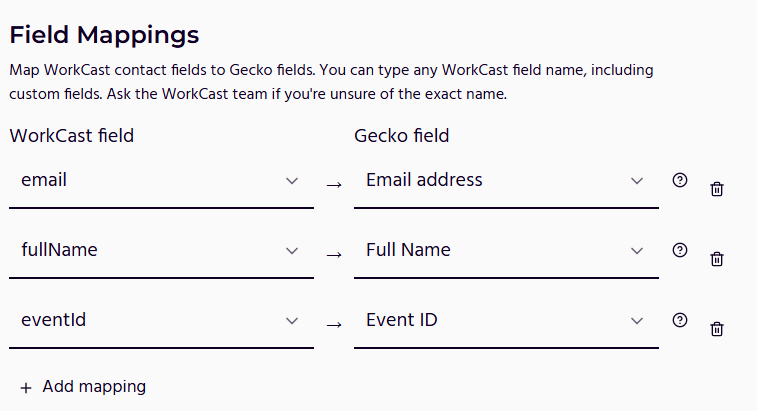
Step 3: Map WorkCast fields to Gecko fields
Field mappings decide which registration details are written to which Gecko contact fields. Nothing is mapped for you, and Email must be mapped before anything can sync, because email is how WorkCast finds the contact.
Under Field Mappings:
- Click Add mapping.
- Choose a WorkCast field on the left.
- Search for the Gecko field on the right and select it. The list shows your own Gecko contact fields, and only the types WorkCast can write.
- Repeat for each field you want, then click Save settings.
A note under the chosen Gecko field tells you its type. If WorkCast refuses a mapping when you save, the message names the field and the reason.
A sensible starting set
| WorkCast field | Gecko field |
|---|---|
| Your email field. Required. | |
| Full Name (first and last) | Your name field. |
| Company, Job Title, Phone | The matching text or telephone fields, if you collect them. |
| Minutes Viewed | Tick Create a field for me, or pick a number field of your own. |
Names
Gecko usually holds a person's name in one name field, with a first and a last part. WorkCast holds two separate fields. Map Full Name (first and last) to your Gecko name field and both parts are filled. Mapped to a plain text field, the same choice writes "First Last".
You can still map First Name and Last Name one by one if your Gecko account uses separate text fields.
Fields you can map
| WorkCast field | What it holds |
|---|---|
| Email, First Name, Last Name, Full Name (first and last), Title, Phone | Standard registration form fields. Title is the salutation (Mr, Ms, Dr). |
| Job Title, Company | Standard registration form fields. |
| Country Code, Country | The two-letter code from the form, and the full country name WorkCast derives from it. |
| Address Line 1 to 3, City, County / State, Post Code | Address fields, where your form collects them. |
| Registration Date, Registration Date (UTC) | When the contact registered. |
| Registration Status | live, awaiting_on_demand or on_demand: see On-demand events. |
| Attended | Whether the person watched the live broadcast. |
| Minutes Viewed | Whole minutes the person watched. Must map to a number field. |
| Event ID, Event Session ID, Contact ID | WorkCast identifiers, useful for reporting. |
| Created Date, Updated Date | When the registration record was created and last changed. |
| Referrer | Where the registrant came from, where WorkCast captured it. |
| Custom fields | Any custom question on your registration form. Type its exact field name. |
Minutes Viewed and "Create a field for me"
Minutes Viewed is the one field WorkCast can create for you. On the Minutes Viewed row, tick Create a field for me and save. On the next sync WorkCast adds a number field named "WorkCast minutes viewed" to your Gecko contacts and maps the row to it. If a field with that name already exists, it is used instead of making a second one.
Prefer your own field? Pick any Gecko number field on that row and the tick no longer applies.
For every other WorkCast value, create the contact field in Gecko first, then map to it.
How values are written
These rules protect data that already exists in Gecko:
- New contacts get every mapped field.
- Existing contacts only have a mapped field written when that field is currently blank in Gecko. The integration never overwrites a value your team or another system has entered.
- Minutes Viewed is the exception. It is written when WorkCast's figure is higher than the one already stored, so it only ever goes up.
- Values must suit the field's type. A number field only takes a number, a date field only a date, and long text is cut to fit. An option field only accepts one of its own options, matched on the whole value and ignoring capitals. A value the field would refuse is left blank for that person and the rest of the contact still syncs. WorkCast is alerted so we can help you adjust the mapping.
- One WorkCast field can fill two Gecko fields. Add a row for each.
- Several Gecko contacts on one email. WorkCast uses the contact your Gecko form created for that registration when there is one, otherwise the newest.
- A registrant with no usable email address is skipped.
Step 4: Choose which events appear in Gecko
Below the field mappings, the page groups three boxes under Optional settings: What appears in Gecko, Registrations from Gecko and Exclusions. Each box starts closed, and the line under its title shows the current setting, for example "Only events already in Gecko · labels off". Click a title to open the box. Steps 4 to 6, and the registrations set-up further down, are done in these boxes.
A contact's attendance status (registered, attended, did not attend) is held on a Gecko event. In the What appears in Gecko box, the Gecko events options choose whether WorkCast uses the Gecko events you have linked:
| Option | What happens |
|---|---|
| Only events already in Gecko | "Uses the Gecko event whose CRM value is the WorkCast event id, and never creates one. Other WorkCast events sync contacts only." A Gecko event matches when its CRM value is the WorkCast event ID, for example 12345. An event ID with a session, for example 12345:67890, also matches. The help icon beside the option says the same. This is the starting choice. |
| No Gecko events | "Contacts only. No attendance is recorded." No Gecko event is created or used. |
Things to know:
- WorkCast does not add events to your Gecko event list. You create the event in Gecko and link it to the WorkCast event with the CRM value, as described below.
- Without a Gecko event, there is no attendance status. Contacts, mapped fields, minutes viewed and labels are still written. The labels in the next step are then the only record in Gecko of who registered and who attended, so turn them on. While they are off, the page shows a warning in the What appears in Gecko box, whether the box is open or closed.
- You can change your mind. Switching to No Gecko events leaves existing Gecko events and statuses as they are. Switching back carries on with the same Gecko events.
- To link an event, set the Gecko event's CRM value to the WorkCast event ID. You find it in Gecko on the event, under Edit, then Advanced settings. The event's title can be anything. The next sync picks it up.
- If two Gecko events carry the same WorkCast event ID, both register people into the WorkCast event, and WorkCast records attendance on the older of the two only.
Step 5: Labels (optional)
In the same What appears in Gecko box, turn on Label contacts per event to add up to three labels per WorkCast event to the contacts the sync writes:
WorkCast {event ID} RegisteredWorkCast {event ID} AttendedWorkCast {event ID} On-demand
Labels are added to whatever labels the contact already has. Nothing is removed. Labels work with any choice in Step 4, and they are the simplest way to build a Gecko filter or campaign from a webinar audience.
Step 6: Exclusions (optional)
Exclusions keep test registrations, internal staff and internal events out of Gecko. Each list is per account, and none is retroactive: anything already in Gecko stays there when you add a rule. Exclusions govern what WorkCast sends to Gecko. They do not stop a registration that arrives from a Gecko form.
Open the Exclusions box. The line under its title counts what is excluded, for example "2 email domains, no event IDs, no event name patterns".
- Excluded email domains. Registrants with an email at that domain, or any subdomain of it, are not sent to Gecko.
workcast.comandworkcast.co.ukare listed by default so WorkCast staff who register for your events never reach your account. Remove them if you want those registrants synced. - Excluded event IDs. The event is skipped entirely: no contacts, no Gecko event, no labels.
- Excluded event name patterns. Any event whose name contains the word or phrase is skipped. Capitals do not matter, and the match is "contains", so
testalso skips an event called "Latest figures". Choose patterns with that in mind.
Press Enter after each entry to add it.
Step 7: Sync settings and switching on
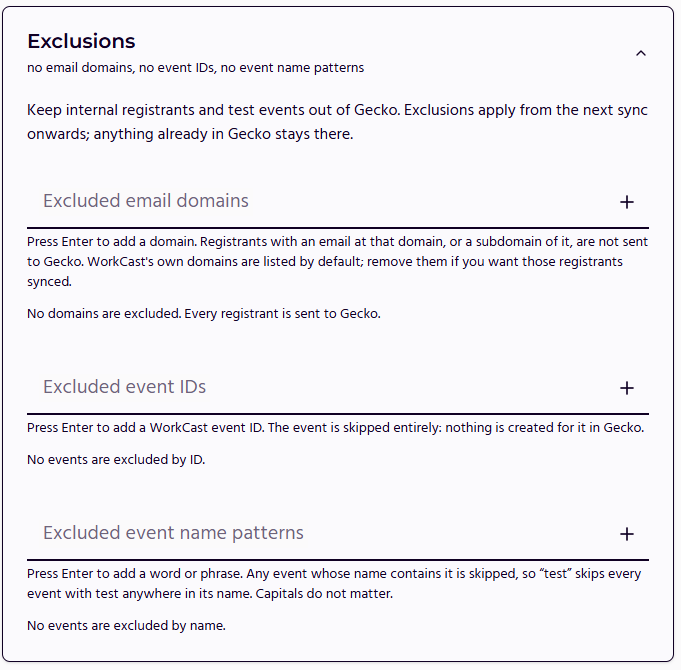
Under Sync Settings:
- Choose a Sync frequency from the list. This is how often WorkCast checks for new events and registrations to send to Gecko.
- Click Save settings. A "Settings saved successfully." banner confirms it.
- Under Connection, check that Send registrants and attendance to Gecko is on. This is the switch that runs the sync.
The first sync starts within a few minutes. Once it has run, the section shows Last sync with the time. If any events failed in the last run, a line says how many. Failed events are retried on the next sync and WorkCast is alerted automatically, so you do not need to report it.
Sync window: how far back to go
The cog icon at the top of the page opens Sync window settings. These control how far back WorkCast looks when it syncs:
- Sync events from. Only events on or after this date are synced.
- Sync contacts from. The first time an event is synced, only people who registered after this date are pulled.
Set these before you turn on Send registrants and attendance to Gecko if you do not want historic events and registrants sent to Gecko. Narrowing the window later does not remove anything already synced.
Registrations from Gecko forms (optional)
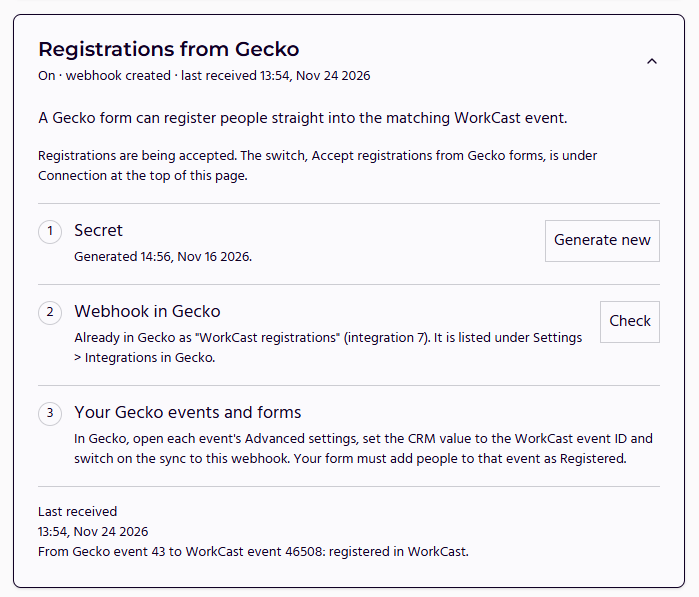
If people sign up for your webinar on a Gecko form, WorkCast can register them in the matching WorkCast event automatically. Gecko tells WorkCast each time a contact is added to a Gecko event as Registered, and WorkCast makes the registration.
Set it up once, in the Registrations from Gecko box under Optional settings. The box starts closed; click its title to open it. The line under the title shows where things stand, for example "Off · webhook not created". Inside are three numbered steps, each with its state and its button on the same row:
- On step 1, Secret, click Generate. The secret appears once. Click Copy and keep it somewhere safe until the set-up is finished.
- On step 2, Webhook in Gecko: when you open the box, WorkCast looks in your Gecko account for a webhook that points at your WorkCast address. If there is none, click Create. WorkCast adds a webhook to your Gecko account with the WorkCast address, the current secret and the email and name attributes. If one is already there, the step names it, and Check confirms it carries the current secret and the attributes. Both need the optional Integrations permissions from Step 1.
- Under Connection at the top of the page, turn on Accept registrations from Gecko forms. It saves as soon as you change it. While it is off, WorkCast ignores anything Gecko sends.
Step 3 on the page, Your Gecko events and forms, is done in Gecko, once for each event. WorkCast cannot do this part for you.
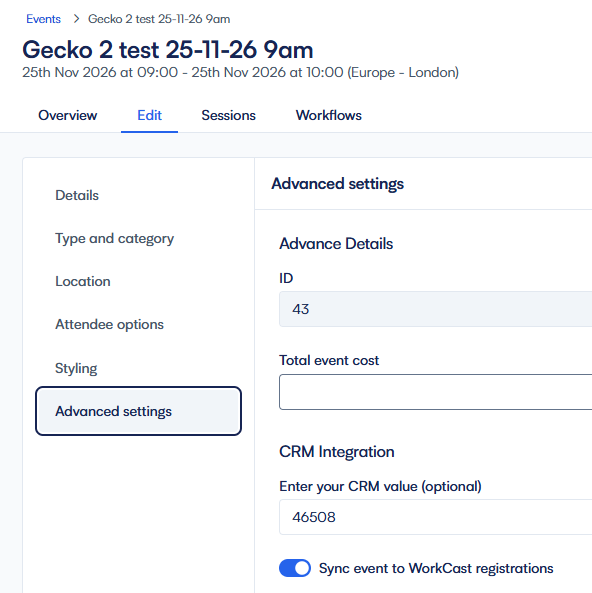
- Link the Gecko event. Open the event in Gecko, choose Edit, then Advanced settings. Set the CRM value to the WorkCast event ID, for example
12345. This is how WorkCast knows which event to register people for. - Switch on the sync for that event. In the same Advanced settings, turn on the switch named after the webhook, for example Sync event to WorkCast registrations. From then on, Gecko tells WorkCast each time a person is added to that event. You do not add the webhook to a workflow.
- Make your form add people to the event. Use one of these, not both:
- In the form builder, on the Form Fields tab, add the Event field and choose the event.
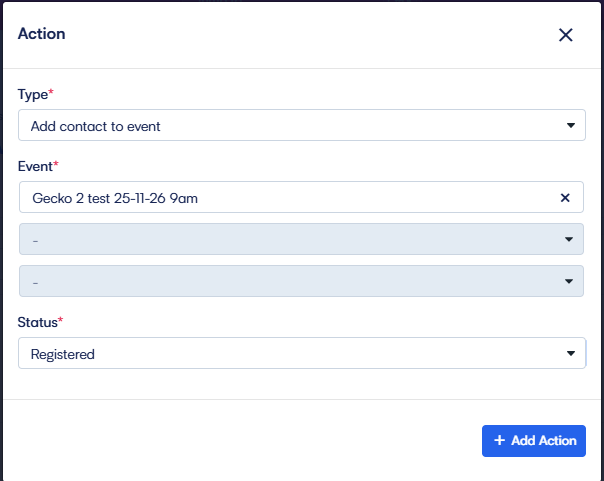
- On the form's Workflows tab, choose Add workflow, New workflow, then Add Action. Set the type to Add contact to event, pick the event and set the status to Registered.
The field called Event ID under Contact Fields is not the same thing. It stores a value on the contact and does not add anyone to an event.
Only people added with the status Registered are registered in WorkCast.
If WorkCast could not add one of the email or name attributes, the page lists which to check, and you add them on the webhook in Gecko.
Events with more than one session
By default a person is registered for the first session of the WorkCast event. To choose a different one, put the session ID after the event ID in the CRM value, separated by a colon: 12345:67890.
Sending more than email and name
The webhook WorkCast creates sends the email address and the first and last name. To send more, add attributes to the webhook in Gecko and give each one an External Id from this list. Capitals, spaces, hyphens and underscores do not matter.
| External Id | WorkCast registration field |
|---|---|
email_address or email | Email. Required. |
title | Title (salutation) |
first_name | First name |
last_name or surname | Last name |
company, organisation or organization | Company |
job_title | Job title |
address_line_1, address_line_2, address_line_3 | Address lines |
city | City |
county, state or county_or_state | County or state |
postcode, post_code or zip | Post code |
country_code or country | Country. A country name is converted to its code; one WorkCast cannot recognise is left out. |
phone, telephone or mobile | Phone |
| Anything else | Sent as a custom registration field, up to 20 per registration. |
Long values are shortened to fit the WorkCast field. An email address that is missing or not valid means the registration is not made.
What gets registered
- Only people with the status Registered on the Gecko event are registered in WorkCast. Other statuses are ignored.
- The same person sent twice for the same event is registered once.
- The person then receives the confirmation and reminder emails your WorkCast event is set to send.
- WorkCast reads their attendance back into Gecko on the same Gecko event, whatever you chose in Step 4, unless you chose No Gecko events.
Checking it is working
Last received shows the time of the most recent registration from Gecko, which Gecko event and WorkCast event it was for, and how far it got: "registered in WorkCast", "queued, waiting on WorkCast" or "failed in WorkCast". It shows no personal details. Until the first one arrives it reads "Nothing has arrived from Gecko yet." The line under the section heading shows the same in brief, so you can see it without opening the section.
Once the webhook exists, the button on step 2 becomes Check. Press it at any time to confirm the webhook is still there and still sends the current secret.
Changing the secret
On step 1, click Generate new, then confirm with Generate new secret. The WorkCast address does not change. WorkCast does not change the webhook in Gecko, so you must paste the new secret into the webhook's Auth value in Gecko yourself, with X-WorkCast-Secret as the Auth key. Until you do, registrations from Gecko are refused.
What you will see in Gecko
Contacts
Every registrant becomes a Gecko contact, or is matched to an existing one by email address. Mapped fields are filled following the rules in How values are written.
Gecko events and attendance
Where a WorkCast event has a Gecko event, each person has one attendance status on it:
| Status | Meaning |
|---|---|
| Registered | Registered for the WorkCast event. |
| Attended | Watched the live broadcast. |
| On-demand | Registered for, or watched, the recording. |
| Did not attend | Registered but did not watch. Set once, after the live broadcast, when attendance has been processed. |
A status only ever moves up. Attended is never replaced by On-demand, On-demand is never replaced by Did not attend, and none of them goes back to Registered. A status set in Gecko that is not one of these four is left alone.
The Gecko event is the one you created and linked with the CRM value. WorkCast changes nothing on the event itself: it only adds attendees and sets their status. You can rename the event; please leave the CRM value as it is.
Labels
With labels on, a contact carries a label for each thing they did: registered, attended, watched on demand. See Step 5.
On-demand events
The Registration Status field, where you have mapped it, holds one of three values:
| Status | Meaning |
|---|---|
live | Registered before the live broadcast ended. |
awaiting_on_demand | Registered after the broadcast ended but before the recording was published. |
on_demand | Registered once the recording was available, or for an event that was only ever on demand. |
People who register for the recording get the On-demand attendance status and, with labels on, the On-demand label. A live event that you later convert to on-demand is handled end to end: live attendance is recorded once after the broadcast, then WorkCast keeps watching the event and sends new on-demand registrations to Gecko every day.
An event that was only ever on demand has no live broadcast, so nobody on it is marked Did not attend.
When data arrives
| What | When |
|---|---|
| New registrations, WorkCast to Gecko | On the next sync, at the frequency you chose. Registrations that take a few minutes to settle in WorkCast's reporting are picked up on the following sync. |
| Attendance, Did not attend and Minutes Viewed | Starting one hour after the live broadcast ends, as soon as WorkCast's reporting has processed attendance. Expect them within one to a few hours of the end of the event. |
| On-demand registrations after the event day | Once a day, shortly after 02:00 UK time, for events that are available on demand. |
| Registrations from a Gecko form | Sent to WorkCast as soon as Gecko reports them, normally within a minute or two. |
Disconnecting
Under Connection, click Disconnect and confirm. This turns both switches off and WorkCast forgets the saved tokens, so syncing stops. Nothing in Gecko is removed, and your field mappings, settings and registrations secret are kept, so you can reconnect later by pasting a new token pair.
Gecko cannot be told to cancel the token from WorkCast. To remove access completely, also end the session in Gecko under Settings > Active Sessions.
If you set up registrations from Gecko, also turn off the sync switch on each Gecko event, or delete the webhook in Gecko under Settings > Integrations. WorkCast does not delete it.
Troubleshooting
Connecting fails with "The access token is not a Gecko API token". The wrong value is in the Access token field, often the refresh token. Paste the access token in the first field and the refresh token in the second.
Connecting fails with "The token is missing Gecko permissions the sync needs". The message names what is missing. Create a new token in Gecko with view, create and update on Contacts, Events and Labels, and paste the new pair.
The page says the connection was dropped and asks for a new token pair. Gecko stopped accepting the saved token. This happens when the session is ended in Gecko, or when the same token is used somewhere else. Create a new token in Gecko, paste the pair and click Connect Gecko. Your mappings and settings are still there. Use a token that only WorkCast uses.
The Gecko field list will not load, and says the token has expired. The token is renewed during a sync, not when you open the page. Wait for the next sync and reload. If Send registrants and attendance to Gecko is off, turn it on first.
Nothing is arriving in Gecko. Check, in order: the Connection section shows "Connected to"; a WorkCast API key is saved; Email is mapped to a Gecko field; Send registrants and attendance to Gecko is on; the event is not excluded and falls inside the sync window; Last sync shows a recent time.
Contacts arrive, but there is no Gecko event or attendance status.
This is the Gecko events choice under What appears in Gecko. Under "Only events already in Gecko", a WorkCast event with no matching Gecko event syncs contacts only. Create the event in Gecko and set its CRM value to the WorkCast event ID, for example 12345.
My Gecko event exists but WorkCast is not using it. Check the Gecko event's CRM value. It must be the WorkCast event ID on its own, or the event ID, a colon and a session ID. The title plays no part. If another, older Gecko event has the same CRM value, WorkCast records attendance on that one.
A field stays empty on a contact. Either the field already held a value, and WorkCast only fills blanks, or the value did not suit the field: an option that is not in the list, text in a number field, a date it could not read. Check the field's options in Gecko.
The name is blank. A Gecko name field needs both a first and a last name. Map Full Name (first and last) to it, not First Name on its own.
Saving is refused and the message names a Gecko field. The mapping points at a field WorkCast cannot write, one that no longer exists in Gecko, or a field under Minutes Viewed that is not a number field. Pick another field from the list.
Nobody is marked "Did not attend". That status is set once, after the live broadcast has ended and attendance has been processed. It is not set on events that were only ever on demand.
There are two Gecko events for one WorkCast event. Two Gecko events have the same WorkCast event ID as their CRM value. Both register people into the WorkCast event, and WorkCast records attendance on the older one only. If you meant to have one, clear the CRM value on the other or delete it.
Creating the webhook in Gecko says the token cannot manage integrations. The connected Gecko user does not have the Integrations view and create permissions. Grant them in Gecko, create a new token and connect again.
Registrations from Gecko stopped after I generated a new secret. The webhook in Gecko still sends the old one. Paste the new secret into the webhook's Auth value in Gecko.
Gecko's webhook log shows "404". WorkCast refused the request. Check that Accept registrations from Gecko is on and saved, and that the webhook's Auth value is the current secret. If in doubt, generate a new secret and paste it into Gecko.
Gecko's webhook log shows "400". The webhook's format was changed. It must send JSON, with Gecko's default array and date formats.
Someone filled in my Gecko form, but Gecko sent nothing to WorkCast. Look at the Gecko event's attendee list first. If the person is not on it, the form is not adding people to the event: add the Event field to the form, or an Add contact to event workflow action with the status Registered. If the person is on it, open the event's Advanced settings and check the sync switch for the WorkCast webhook is on.
Gecko shows the webhook was accepted, but the person is not in WorkCast. Check the Gecko event's CRM value is the right WorkCast event ID, and the session ID after the colon if you use one. Check the person's status on the Gecko event is Registered and their email address is valid. Check your WorkCast API key is saved. Gecko does not send the same registration again, so once the cause is fixed, register that person in WorkCast by hand. WorkCast is alerted to registrations it could not make.
Still stuck? Contact WorkCast support with your WorkCast account name, the WorkCast event ID and the time of the problem. Please do not send API tokens or the registrations secret.