![workcast_logo_orange-01.png]](https://insite.workcast.com/hs-fs/hubfs/workcast_logo_orange-01.png?height=50&name=workcast_logo_orange-01.png)
Email support@workcast.com if you would like to connect your account to our updated Zoho CRM (This is a temporary step and may take 2-5 business days to be activated).
You will receive an email back from Support once the integration setup has been made visible in your account along with your WorkCast API key.
Authenticate your Zoho CRM account
Once you have received your WorkCast API key, log in to your account with your Producer login, click on the Integrations menu on the top bar.
You will now be presented with the option to select the required integration type. Select the Zoho icon.

Click the bar that shows "New authentication" to login to your Zoho account.
Confirm your WorkCast account details
For the next section you will need to confirm a few details for your WorkCast account. Please enter your:
- WorkCast Account ID (can be found in the top right hand corner of your account)
- WorkCast API Key (please reach out to support@workcast.com if you do not have this)
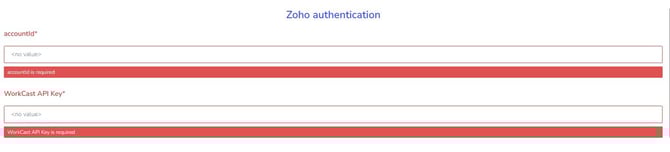
Authenticate your Zoho account
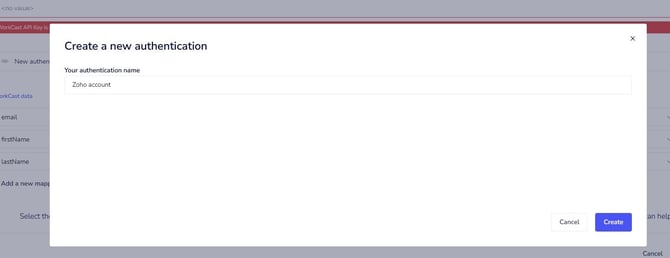
Click New authentication to login to your account.

This will open a pop-up that will ask for your Authentication Name (choose whatever you feel is appropriate for your account). Once added click Create.
A Zoho authentication popup window will appear. Use this to login to your account, select the account you wish to connect to and click Choose Account. If you close this box at any time you will need to start the authentication process again.
This may take you another page to confirm details before automatically closing once authentication is complete. You should see a notification in the bottom left hand side of the to confirm that authentication for your account has been successfully created.
Select your field mappings
Once your Zoho account has been authenticated, you can add your field mappings to select which properties should go where from your WorkCast to your Zoho account. You can Add a new mapping as well delete mappings with the trashcan icon.
Once completed, click Finish.

NOTE: It can take up to one hour for Registration and Attendance data to appear in your target system.
How is your data captured in Zoho CRM?
Each time someone registers for an an event the integration will:
- Search by email address for a contact that matches
- If no contact is found then a new lead is added
- A registration activity is added as a note for the event on the contact or lead (includes event title, date and time and event ID)
- If attends the event then an attended activity is added as a note to the contact or lead
Currently no attended data will pull though for historic or on-demand events but will pull through for upcoming events.
FIELD MAPPING: Currently all standard registration for fields in the WorkCast platform are available and are listed below.
We recommend that the Zoho fields you map to are the same format with the same options (eg. open text field or dropdown field) or may cause an issue with updating contacts in Zoho.
- Email* (must always be included)
- Title
- First Name
- Last name
- Job Title
- Company
- Phone
- Country Code
- Address Line 1
- Address Line 2
- Address Line 3
- City
- County Or State
- Postcode
- Engagement Score
- Event ID
- Event Session ID
- Contact ID
- Registration Date
- Attended Live
- Referrer