![workcast_logo_orange-01.png]](https://insite.workcast.com/hs-fs/hubfs/workcast_logo_orange-01.png?height=50&name=workcast_logo_orange-01.png)
Now you have successfully set up your event the next thing is how will the event run/broadcast to your audience.
The audience will view the event via the auditorium page discussed in the event set up a section while the Event Producers and the Presenters need to log into the WorkCast Studio.
Presenters will access the studio via the link provided to them by you or in the email sent directly from the platform during the event set up.
Accessing the WorkCast Studio as a Producer User
There are two different ways that you can access the WorkCast studio easily as a Producer user.
- Log into your account and navigate to the ‘Your Events’ tab. In here locate the event by typing in the title or searching a date range. To the right of the event, click on the green Launch Studio button.
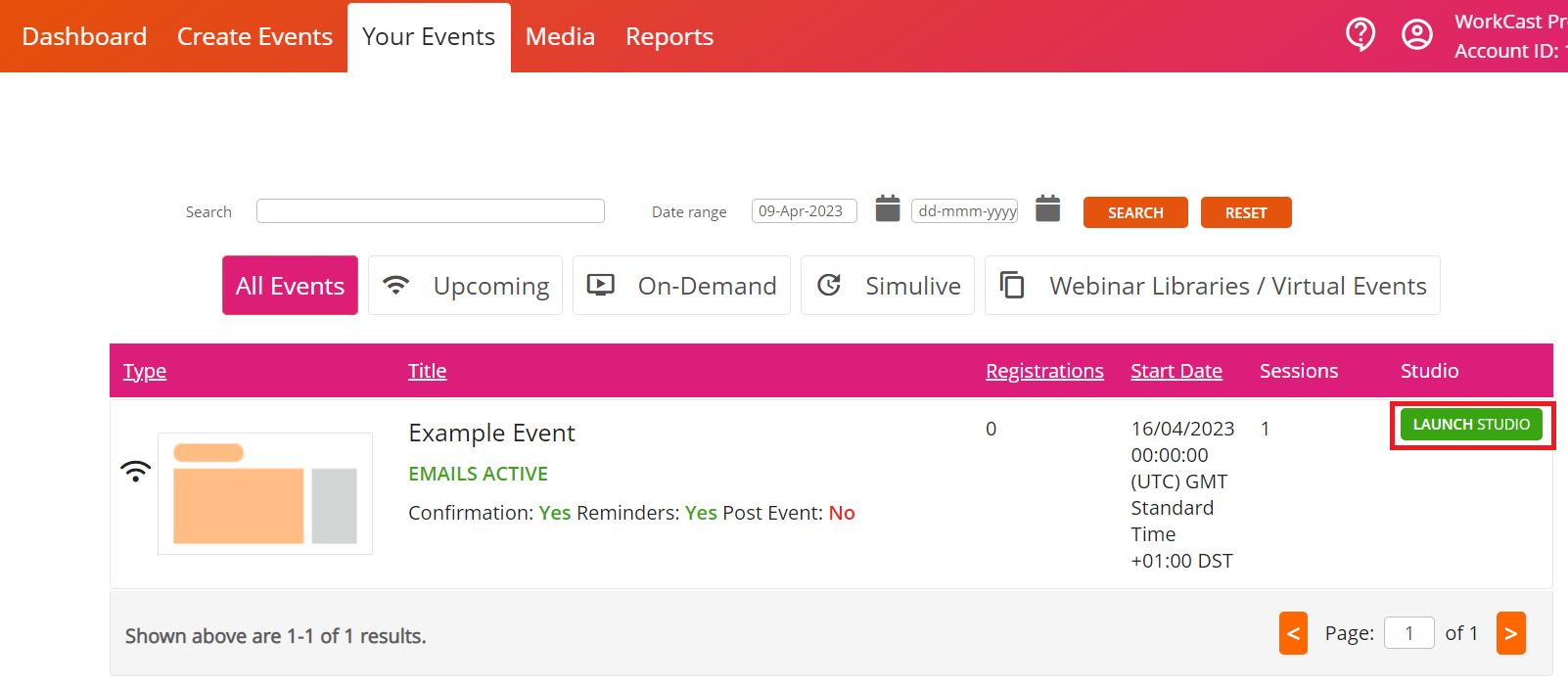
- Log into your account and navigate to the ‘Your Events’ tab. In here locate the event by typing in the title or searching a date range.
Click on the event title of the event you wish to access, this will take you into the event set up area for the event in question. Within the Session Setup & Studio Access tab you will find the green Launch Studio button.
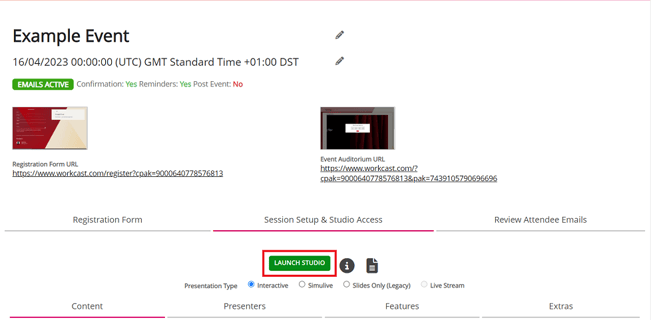
There are two versions of the WorkCast Studio you may enter:
-
Interactive studio
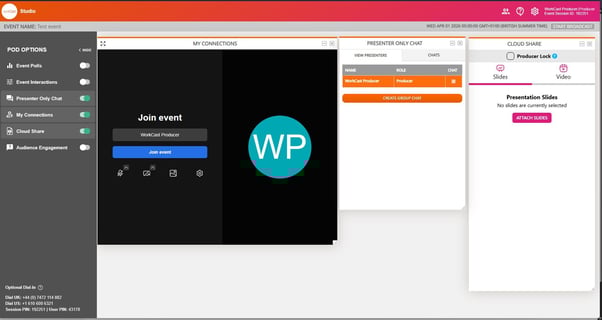
-
Simulive studio
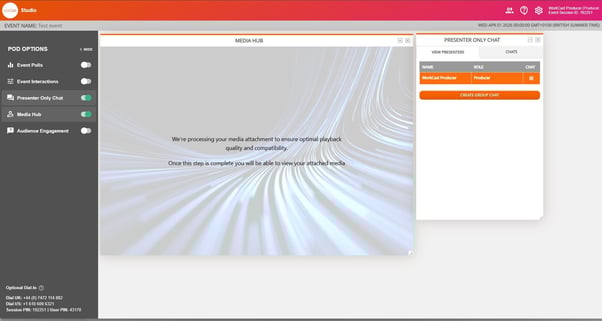
-
Live stream studio
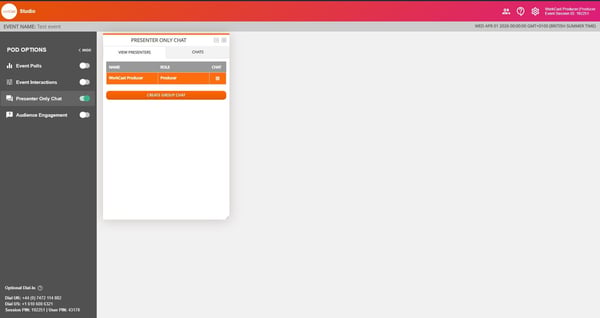
The studio you enter will depend upon the presentation type you’ve chosen.
Studio Basics
To the top of the WorkCast studio you will find:
-
Event Title
-
Date/Time of the event
-
Event Session details

As a Producer you can also keep an eye on the number of attendees currently watching and interacting. Click on Attendees and Attendee Engagement.
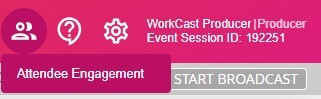
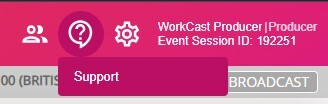
You can access our useful Insite Knowledge base directly from the studio by clicking on ? and Support. Here you can locate articles to help with troubleshooting and best practices.
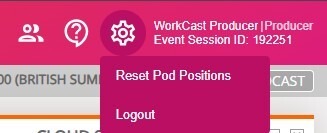
Using the Settings icon you can reset the position of your studio pods and Log out of the studio.
To the left of the screen you will find the Pod options, this can be shown or hidden at any time.
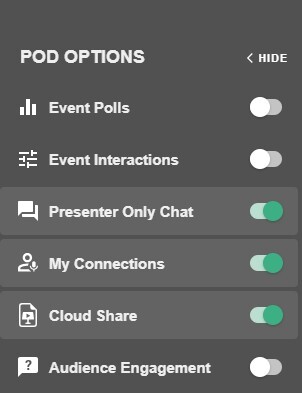
In this menu you will find:
-
My Connections (Interactive Studio) or Media Hub pod (Simulive Studio)
- Cloud Slides (Interactive Studio)
Also within the pod menu, to the bottom of the list you can find the dial in details should you/your presenters find yourselves unable to join via your device's microphone.
These details are event session-specific. The session pin and user pin will change for every new event created.