![workcast_logo_orange-01.png]](https://insite.workcast.com/hs-fs/hubfs/workcast_logo_orange-01.png?height=50&name=workcast_logo_orange-01.png)
Next-gen polls can be used for live (interactive and live Stream) and scheduled (simulive and on-demand) event types. You can continue to use our classic polls to add graded polls to an event or add polls to a CPD.
The polls you know and love now come with a cleaner, faster, and more intuitive interface, built to make audience engagement easier than ever.
✏️ Add, edit, and ask polls directly in the WorkCast Studio
😀 Emoji support and non-Latin character sets for global audiences
📩 Polls now live in the Audience Engagement pod for quick access
📊 See and share results in real-time as they come in
Quick links
- Edit, re-order and delete polls
- Ask a poll in a live event
- Close a poll
- Use Producer lock
- What does the audience see when you ask a poll?
- Poll reporting
Adding polls to a event
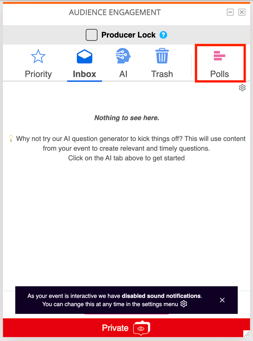 Launch the WorkCast Studio for your event and open the Audience Engagement pod. Polls can be found in the last tab in the pod.
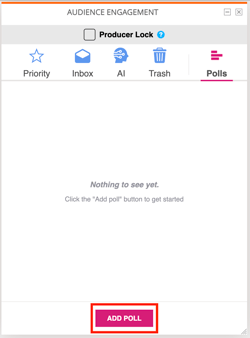 Click Add Poll to start adding your polls.
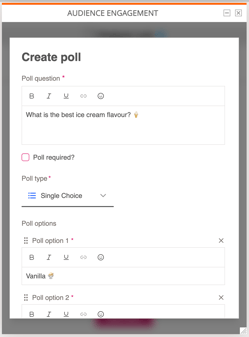 Add your poll question. You can format this, add links and add emojis. You can choose whether your poll is required- this would mean that your audience are unable to skip past this poll.
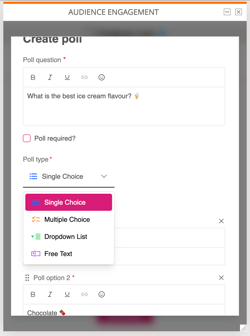 You can choose whether your poll is single choice, multiple choice, a dropdown list or a free text answer.
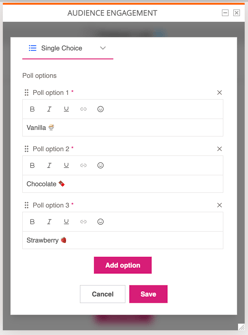 Add all of your poll options that you want your audience to choose from. You can click Add option to add more options for your poll. Once you've added everything, click Save.
How do you want to ask this poll?
You can choose to ask this poll by manually firing or set the poll to be asked automatically at a set point:
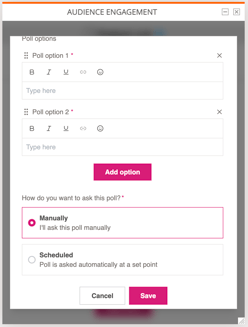
Scheduling polls
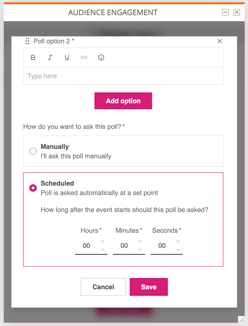
Polls can be scheduled on all event types.
Set the time as an offset from the start of the event- the hours, minutes and seconds that should elapse before the poll appears.
At a minimum the poll needs to be set-up for 3 minutes into the event.
Note: For interactive, live stream and simulive events, if you stop and restart the broadcast, any poll that hasn't fired yet will be rescheduled. Its offset is recounted from the moment you restart, rather than from the original event start.
Polls that have already fired won't fire again.
Edit, re-order and delete polls
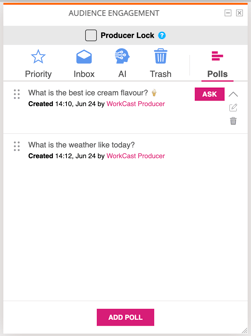 Once you've added your polls you can click on one of your polls to see more details.
 Ask your poll to the audience
 Minimize the poll
 Edit the poll
 Delete the poll
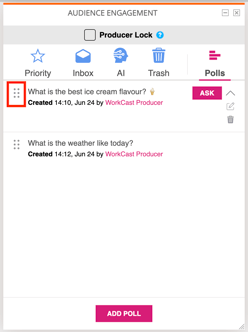 Re-order the polls by using the 6 dots on the left-hand side of the poll to drag and drop the polls into a new order.
Ask a poll in a live event
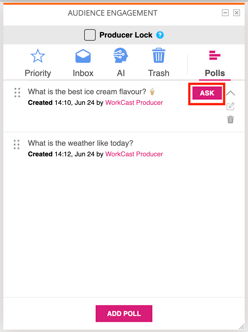 Click on your poll and click Ask. You will then see a confirmation pop-up window that will ask you to confirm that you want to ask this poll to the audience. Click Ask poll.
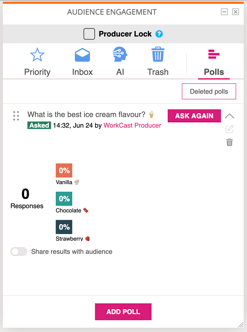 Once your poll has been asked you will then see the results appear automatically as well as yhe option to Ask again.
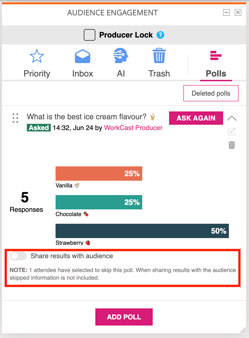 The graph will update as the results come in from the audience.
Use the toggle to share and un-share poll results with the audience.
You can also see how many attendees have skipped the poll.
- All poll results can be found on the polls reporting whether the poll has been deleted in the Studio or not
- Currently you can hide a poll for the audience by deleting the poll
- Currently you will not be able to see the answers to free text polls in the Studio but is available in the poll reporting
What does the audience see when you ask a poll?
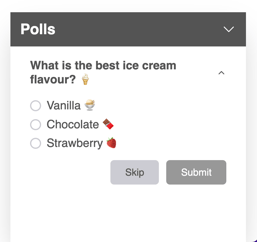 Polls appear for the audience in the bottom right-hand corner of the auditorium as a pop-up window. If the poll is not required then the audience will have an option to skip the poll.
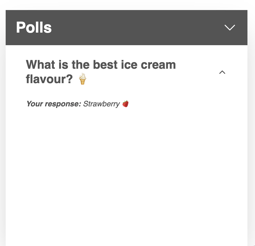 The audience member will be able to see the poll answer that they gave or if they skipped the poll.
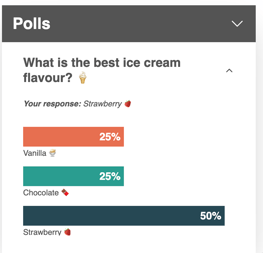 When the results are shared to the audience, the attendee can see the results with only percentages and no number of those that answered.
 If the pop-up box is mimimized and a new poll is asked to the audience then the minimized box will flash green.
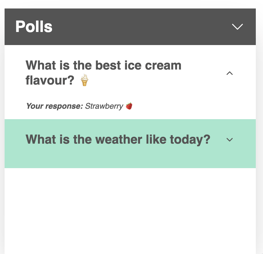 Once the pop-up box is open then new polls will show in green within this box, ready for attendees to answer.
Close a poll
If would like to limit the time that a poll is available to your audience to answer, you can close a poll.
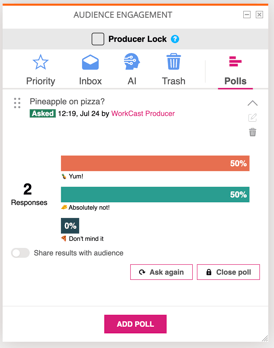 After asking a poll question you will be able to see the option to Close poll.
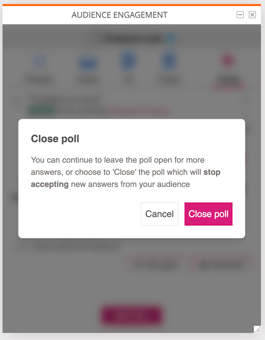 After clicking Close poll you will see a pop-up window confirming that the poll will be closed to accepting more answers. To continue click Close poll.
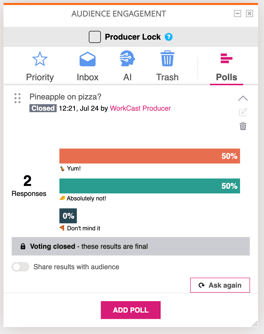 For a closed poll all presenters and producers will be able to see that a banner confirming that voting is closed for the poll.
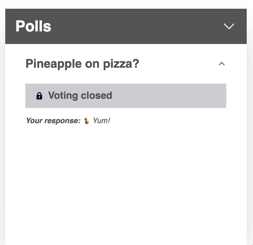 An audience member will be able to see that voting has closed on the poll.
Use Producer lock
Producer lock can enabled by a Producer to limit the activity of presenters in the Studio.
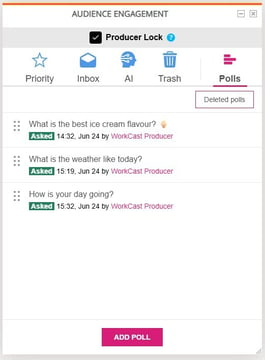 Tick the checkbox next to Producer Lock at the top of the pod. This is only visible for Producer users and can be unticked at any time.
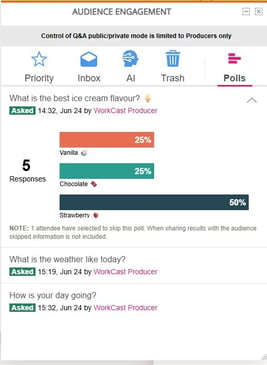 When producer lock is enabled, presenters can only view the poll questions and poll results. They are unable to ask, edit or delete a poll.
The Producer lock also enables for the whole pod so would include the Q&A.
Polls reporting
Reporting for next-gen polls can be found in your normal reporting dashboard. This can be found by navigating to your event build within WorkCast Creator and clicking on Event Report on the right-hand side of the page.
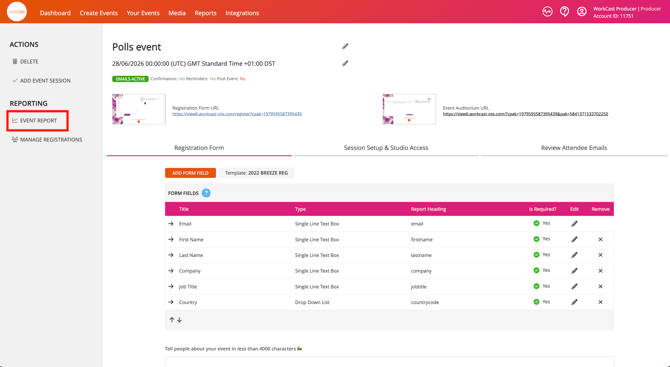
All reporting for next-gen polls can be found under New Poll Results. Graphs will not currently show results for free text polls, but will show number of responses.
Full responses can be found on the downloadable report. This can be downloaded by clicking the download icon.
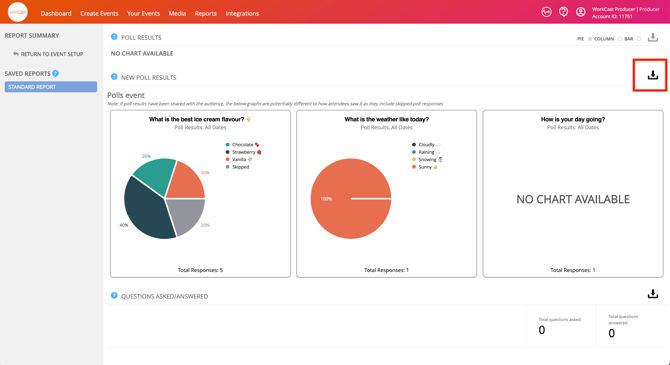
The downloadable report is sent to the email address of the producer who requested the report.