![workcast_logo_orange-01.png]](https://insite.workcast.com/hs-fs/hubfs/workcast_logo_orange-01.png?height=50&name=workcast_logo_orange-01.png)
WorkCast users with a Business Pro or Enterprise plan are able to use CPD within their online events.
Graded polls are one of the easiest ways to offer testing and CPD/certification to your audience. They can be used in LIVE, SIMULIVE and ON-DEMAND events.
Quick links
Creating your certificate
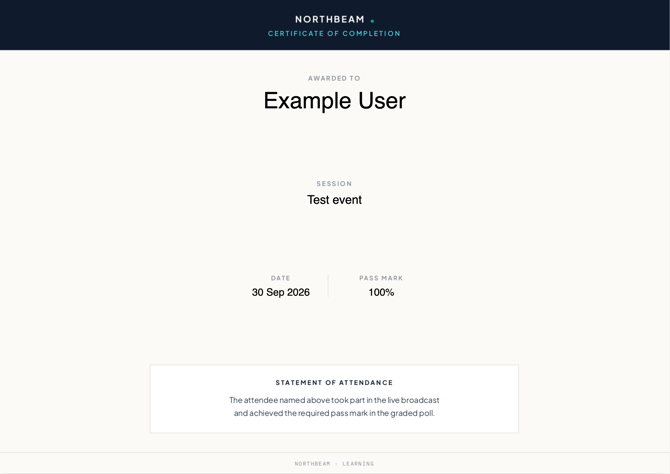
When an attendee reaches your pass mark, WorkCast creates a personalised certificate for them. You design the certificate yourself as a PDF, and add tags where you want the attendee's details to appear. When the attendee opens their certificate, each tag is replaced with their information.
Available tags
| Tag | We replace with |
| [[name]] | The attendee's first and last name. |
| [[title]] | The certificate title you entered in the certificate settings. |
| [[date]] | Live events: the event date. On-demand events: the date the attendee passed. The date uses the format set in the Studio. |
| [[mark]] | The attendee's pass mark. |
How tags are replaced
-
Text size matches your tag. The replacement text uses the same font size as the tag. To make a name appear larger, make the tag larger.
-
Text is centred on the tag. The replacement text is always centred on the tag's position, whatever the tag's own alignment. Place each tag in the centre of the space you want the text to fill.
-
Text is always black. Replacement text is shown in black only, so use a light background where your tags sit.
-
Long text wraps onto a new line. If the text is longer than 90% of the certificate's width, it continues on the next line. Leave space below [[name]] and [[title]] so long names or titles don't overlap other parts of your design.
Tip: Before you publish your event, test your certificate with a long name and event title to check that everything fits.
Example certificate
Uploading your certificate
The certificate should be saved as a PDF. You can use any name as we identify certificates based on it being a PDF and containing at least 1 tag
- Log into WorkCast Creator.
- Click Media from the top menu.

- Click Upload Media from the side bar and upload your certificate.
Setting up graded polls
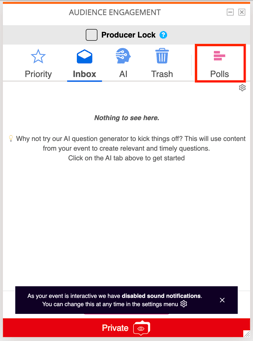
Launch the WorkCast Studio for your event and open the Audience Engagement pod. Polls can be found in the last tab in the pod.
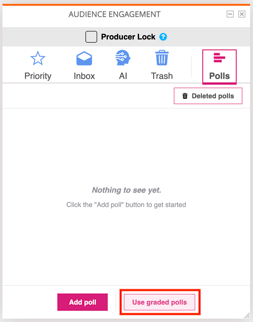 Click Use graded polls to configure how your selected polls should be graded.
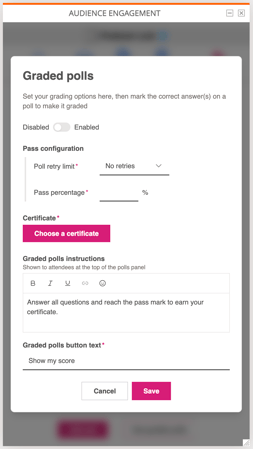
Use Graded Polls disabled/enabled - Select to activate graded polls.
Poll Retry Limit - How many times someone can re-take the test.
Pass Percentage - Denote the score a user needs to achieve in under to earn a certificate.
Certificate - Select from an uploaded certificate or link to an external certificate
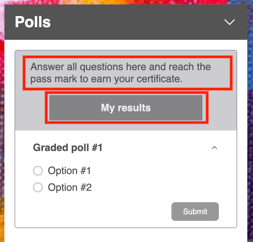
Graded polls instructions - Shown to attendees at the top of the polls panel (as shown below).
Graded polls button text - Shown on the button attendees use to see their results (as shown below).
Marking a poll as a graded poll
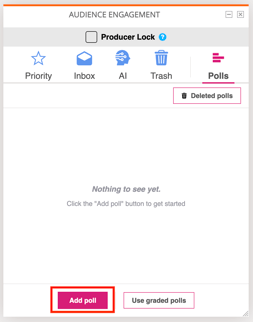 Click Add poll. Complete the form as normal.
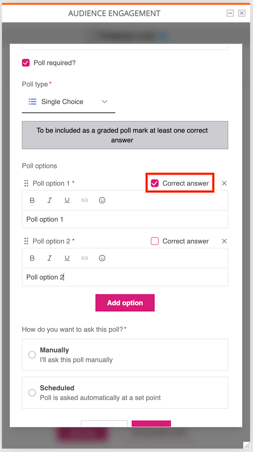 Check the Correct answer box for which answer is correct. This automatically makes the poll a graded poll.
*IMPORTANT NOTE* If you have edited the On Demand Media using the Trim Media function you will need to download this version of the media, reupload to the account and attach to the On Demand session before adding your Graded Polls for these to work. This is because the platform needs to recognise the edited version as a new piece of media.
Should you update/change/trim the media the poll(s) will be removed from the event and you must re-add your poll(s)
Audience view
The below screenshots show the audience experience for an event featuring graded polls.
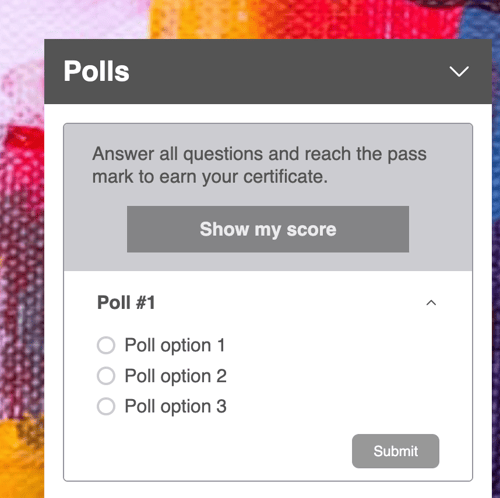
Note: Non-graded polls will be displayed below the graded to keep them grouped:
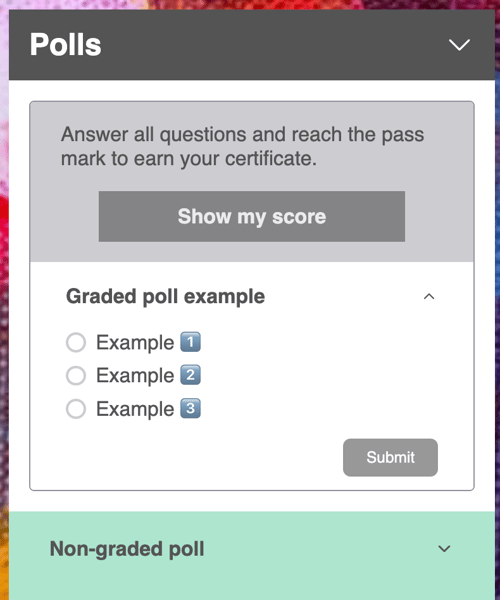
Users can track their scores, retake the test if they fail (if a retake option is available), and access the certificate with a passing grade.
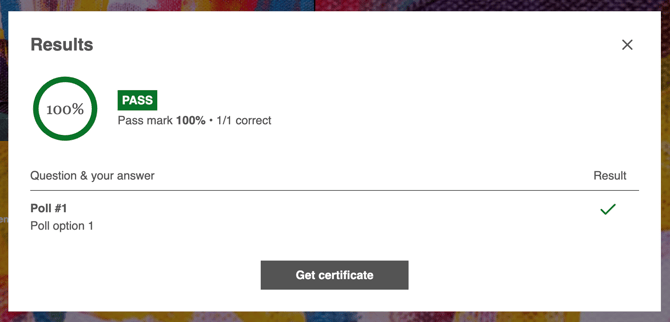
On clicking Get certificate the attendee will then be presented with either:
-
The certificate with the tags replaced
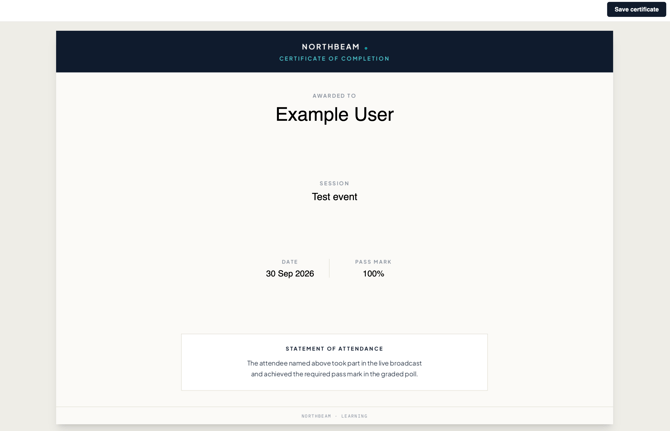
- Or redirect to the URL entered if External Certificate URL was selected