![workcast_logo_orange-01.png]](https://insite.workcast.com/hs-fs/hubfs/workcast_logo_orange-01.png?height=50&name=workcast_logo_orange-01.png)
Discover examples of the different single event master template layouts available on the WorkCast Platform.
All of our templates have been setup and developed to be fully responsive on all the latest browsers and devices meaning you will have the same event experience on desktop, mobile and tablet devices.
You will automatically have access to a range of standard templates to build events within the Create Events tab in your account.
Please note the below template examples can be edited to meet your specific brand guidelines however the layouts are fixed and cannot be changed.
Single session experience
A Single event experience typically consists of the following templates:
-
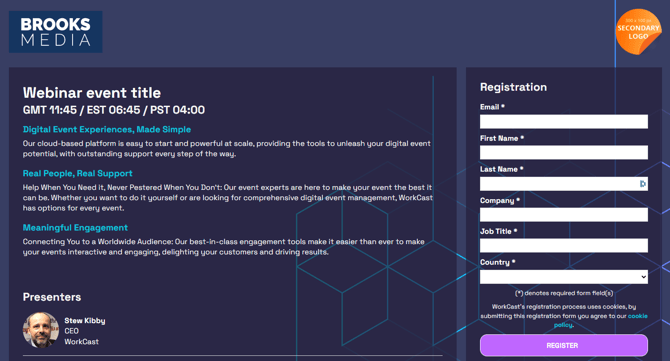
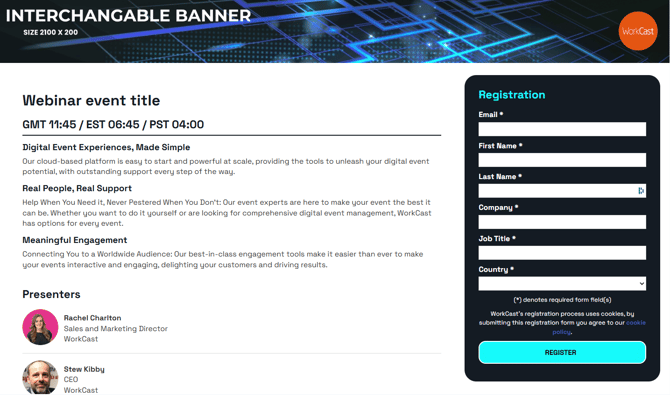
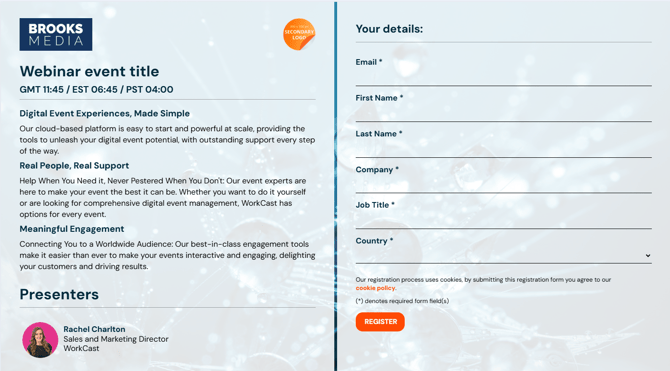
Registration - Handles attendee sign-ups and confirmation of registration details.
-
Auditorium - Used for the live event environment, where the main session takes place.
-
Event Emails - Automated emails sent to registrants before and after your live event.
Registration Templates
To view a live example of the below template(s) please click the image
Registration 1
Registration 2
Registration 3
Auditorium Templates
To view a live example of the below template(s) please click the image and enter your email address
Auditorium 1
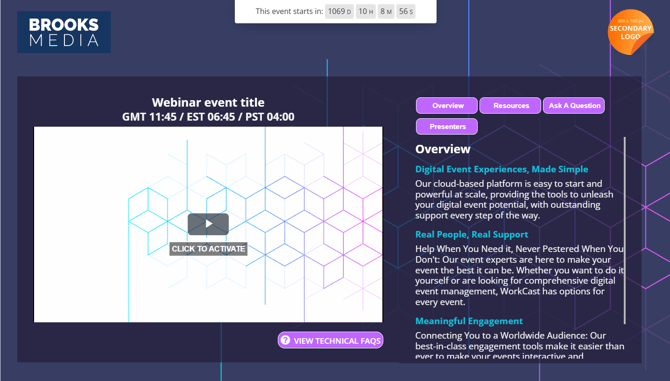
Auditorium 2
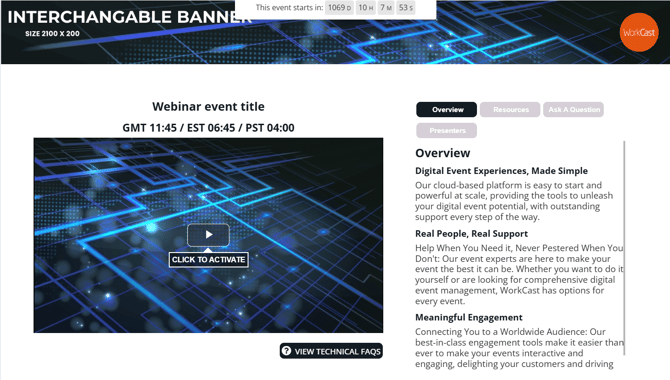
Auditorium 3
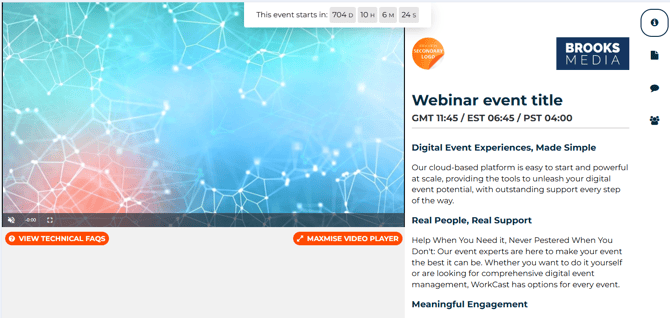
Auditorium 4
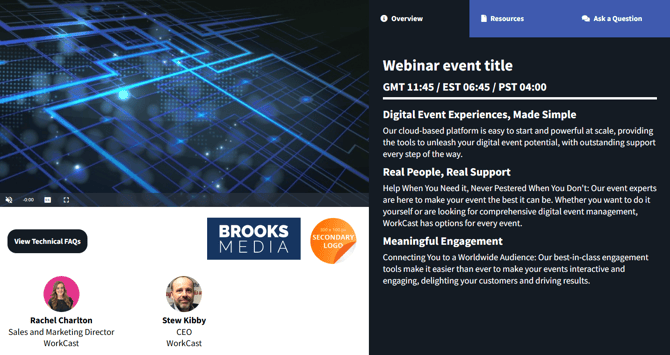
Event Emails
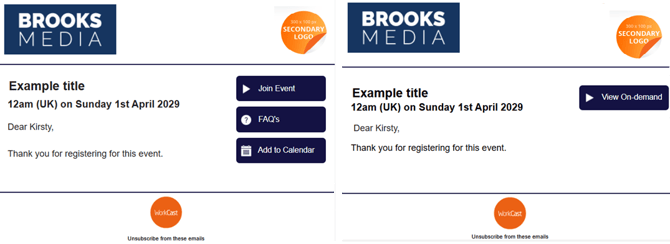
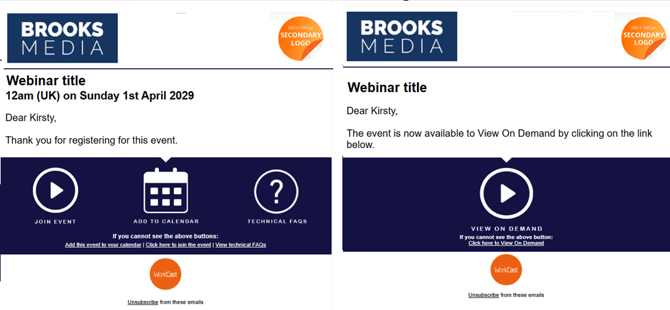
Included with your single event template are two email templates.
- Pre event - used for emails sent prior to your live event i.e confirmation of registration email & Reminder emails
- Post event - used for emails sent after the event.
Image-based layout
These templates use images to direct your registrants to: Join the event, Add the event to their calendar and view attendee FAQ's
CTA button layout
These templates use CTA buttons to direct your registrants to: Join the event, Add the event to their calendar and view attendee FAQ's