![workcast_logo_orange-01.png]](https://insite.workcast.com/hs-fs/hubfs/workcast_logo_orange-01.png?height=50&name=workcast_logo_orange-01.png)
The WorkCast Interactive Studio allows you to select any video input that your browser recognises as a webcam. This includes not only physical webcams, but also virtual webcam sources created by software or hardware such as OBS Studio, Wirecast, and supported Blackmagic ATEM devices.
Using a virtual webcam enables more advanced video workflows, including multiple cameras, graphics, lower thirds, and external vision mixing, while still connecting to WorkCast Studio in the same way as a standard webcam.
This article explains how virtual webcams work with WorkCast Interactive Studio and how to select them when joining your event.
Selecting a virtual webcam in WorkCast Studio
Once you have launched your event and joined the Interactive Studio, video sources are selected from the My Connections pod in the same way as a physical webcam.
When your mouse is moved over the video preview area, the camera controls will appear. Selecting the arrow above the camera icon opens a list of available camera devices detected by your browser. Any active virtual webcam will appear in this list alongside physical cameras: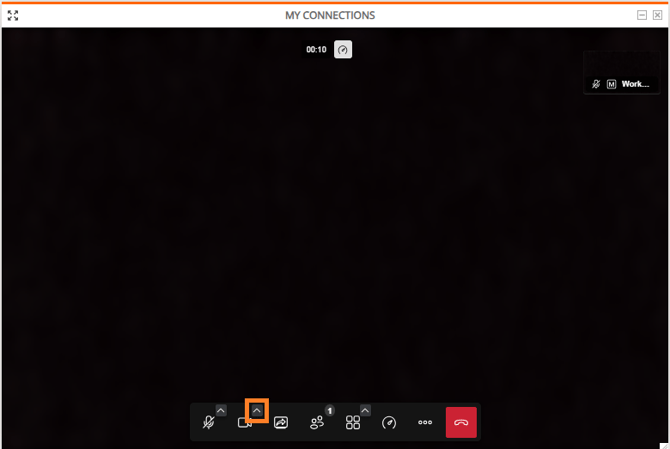
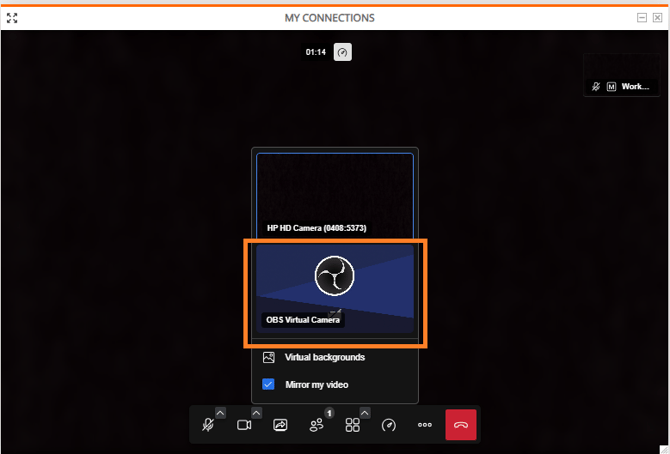
After selecting the virtual webcam, the video preview in the My Connections pod should update to show the output from the virtual source. Once connected, WorkCast treats this input exactly the same as a standard webcam.
Please note that the webcam will appear mirrored on the device running the virtual webcam, but to everyone else in the studio and the audience, this will display correctly.
If the virtual webcam does not appear in the list, ensure the virtual camera software or hardware is running and that your browser has permission to access camera devices.
Using OBS Studio as a virtual webcam
OBS Studio can output its programme feed as a virtual webcam device. This allows any OBS scene, including multiple cameras, screen captures, and graphics, to be sent into WorkCast Studio as a single camera source.
With OBS Studio open, ensure your scenes and sources are configured correctly. The virtual camera must be enabled within OBS before opening or refreshing the WorkCast Studio page in your browser. Once the OBS virtual camera is active, it will appear as an available camera option in the WorkCast Studio camera selection menu.
Selecting the OBS virtual camera will display your OBS programme output in the My Connections preview.
Audio is selected separately within WorkCast Studio and does not need to come from OBS unless specifically required.
Using Wirecast as a virtual webcam
Wirecast includes its own virtual camera output, allowing its live output to be recognised by your operating system as a webcam device.
When virtual camera output is enabled in Wirecast, it becomes available in the camera dropdown within the WorkCast Studio My Connections pod. Selecting this device will route the Wirecast programme feed directly into WorkCast as your video source.
As with OBS, audio input should usually be selected separately within WorkCast Studio unless you are intentionally routing audio through Wirecast’s virtual devices.
Using Blackmagic ATEM devices
Some Blackmagic ATEM models, such as the ATEM Mini range, present their USB output as a standard webcam device when connected to a computer.
When connected via USB and powered on, these devices appear in the WorkCast Studio camera selection list without requiring additional software. Selecting the ATEM device in the camera dropdown will use the live programme output from the switcher as your camera feed.
Larger ATEM models that do not natively present as webcams will require a capture device or software such as OBS or Wirecast, or capture card hardware, such as the Blackmagic UltraStudio Recorder or Monitor, to convert the video output into a virtual webcam source before it can be used with WorkCast Studio.
Audio selection
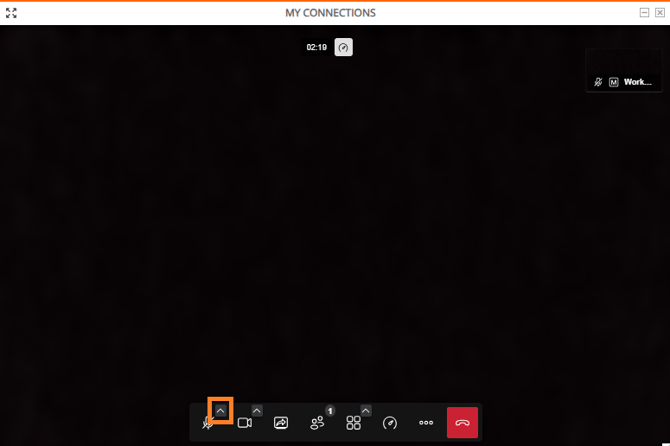
Most virtual webcams provide video only. Microphone selection is handled independently within WorkCast Studio using the arrow above the microphone icon in the My Connections pod.
Selecting a virtual webcam does not affect your chosen audio input unless the virtual camera also includes an audio driver and you choose to use it.
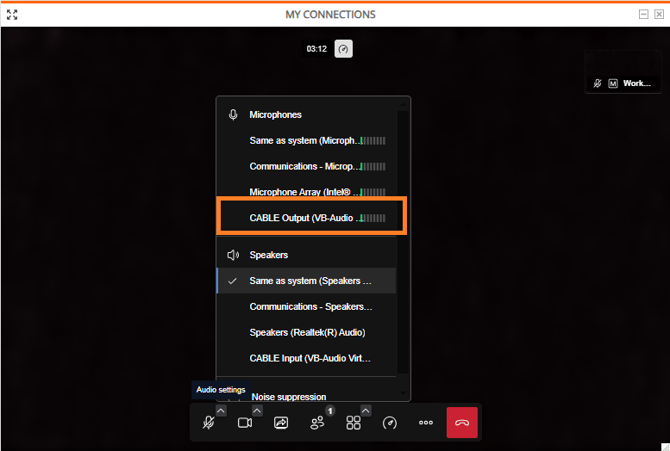
Connecting multiple external microphones can be achieved by using a virtual audio cable, and selecting this as the microphone source in the My Connections pod:
Common issues
Virtual webcams must be running before joining or refreshing WorkCast Studio in your browser. If a device does not appear, closing and reopening the browser will often resolve the issue.
Only one application can usually access a virtual camera at a time. Ensure other conferencing or streaming software is not currently using the same device.
Browser permissions must allow camera access for WorkCast Studio. If permission has previously been denied, this may need to be changed in your browser’s site settings.