![workcast_logo_orange-01.png]](https://insite.workcast.com/hs-fs/hubfs/workcast_logo_orange-01.png?height=50&name=workcast_logo_orange-01.png)
Quick Links
Logging in for the first time as an existing user?
Logging in for the first time as a new user?
What is WorkCast Hub?
WorkCast Hub is our new login page for Producers and Content Editors and the first step in our new WorkCast platform.
We have made improvements to your sign in experience, including:
- Two-factor authentication with an authentication app instead of of an email.
- SIngle sign-on available for Business Pro and Enterprise customers, allowing you to sign in with your Google or Microsoft account.
-
If you have multiple accounts with us, you can now see all accounts in the same place.
For a short transition period when you logout of the WorkCast platform you will see the old WorkCast login page. We recommend bookmarking hub.workcast.com for future logins.
Logging in for the first time as an existing user?
If it is your first time signing into Hub as an existing WorkCast user then we need to migrate your existing user.
-
To login to your account, go to hub.workcast.com. This will be the url you use from now on to login into WorkCast.
- Enter your existing email address that you use with your WorkCast account
- Enter any password (this will not be saved as you will need to authenticate your email and create a new password).
- Click Login
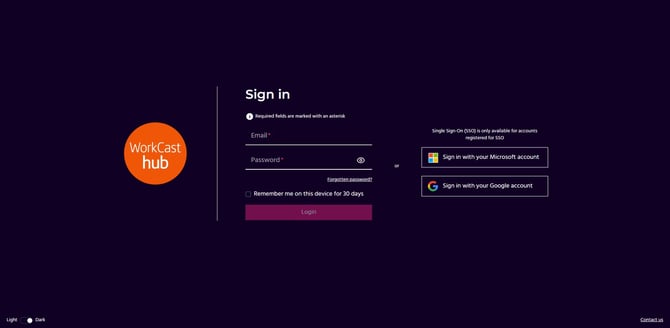
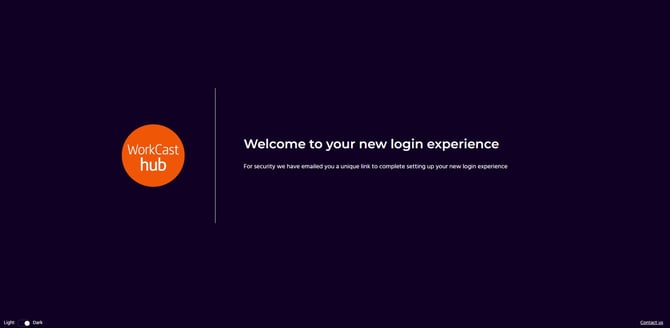
- You will be redirected to a page that will confirm that you have been sent an email with a unique link to continue setting up your WorkCast login.
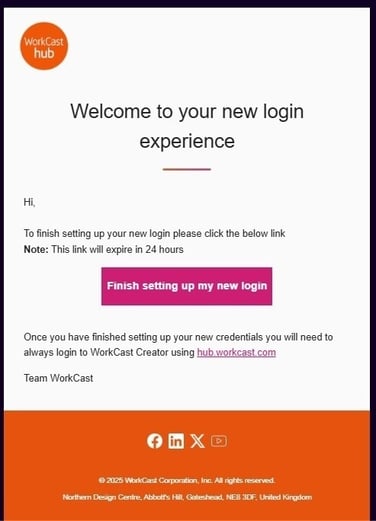
- Once your receive your email from WorkCast Notifications, click the button to finish setting up your new login.
This link will expire after 24 hours but a new one can be requested by starting this process again.
- A new browser tab should open with a page to finish setting up your new login.
- The link will take you to page to finish setting up your new login and will either show single sign-on or username/password depending on your account licence.
SIngle sign-in
If you are a Business Pro or Enterprise customer you are able to setup SSO (single sign-on) with either your Microsoft or Google account.
.jpg?width=670&height=420&name=WorkCast%20Hub%20-%20Finish%20setting%20up%20your%20account%20-%20only%20SSO%20(1).jpg)
- Click either the Microsoft or Google option to sign in
- you will be redirected to either a Google or Microsoft window that will ask you to sign-in with your account details.
- You may be asked to confirm permissions to allow this on your first login.
- You will also be asked any standard two-factor authentication you may have on that account.

- Once you have confirmed your account details your account setup is now complete.
- We recommend bookmarking hub.workcast.com for all your future logins to the WorkCast platform.
If you see a permissions error then we recommend trying again or referring to your service administrator for that account to confirm access.
Username/password
If you do not have single sign-on enabled on your account, the link from your email will direct you to a page to finishing setting up your login by choosing a new password for your WorkCast account.
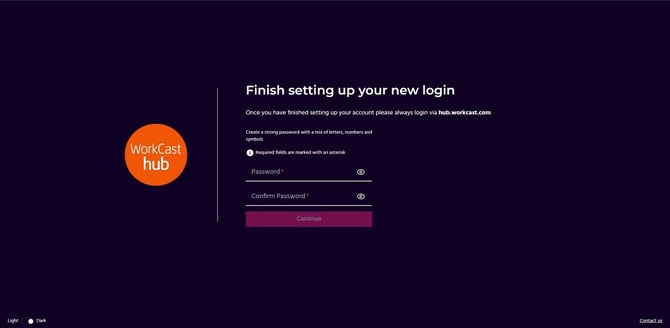
Your password must be at least 8 characters long and contain at least 1:
-
Uppercase letter
-
Lowercase letter
-
Number
-
Special character such as ! @ # $ %
- Once your have chosen your new password you will redirected to a page to set up your two-factor authentication (2FA). You will need to use a third-party Authenticator app for your security code to login.
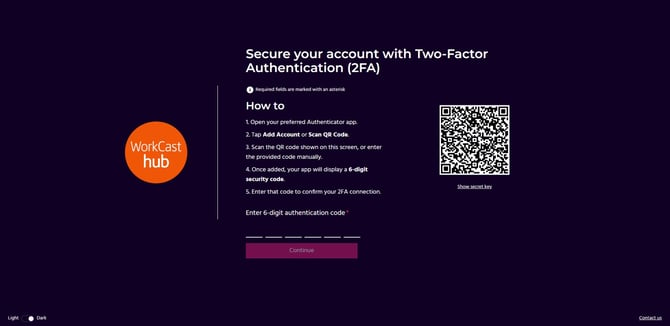
- Once you have confirmed your account details your account setup is now complete.
- We recommend bookmarking hub.workcast.com for all your future logins to the WorkCast platform.
Logging in for the first time as a new user?
A Welcome to WorkCast email from WorkCast Notifications will arrive in your inbox with a link to finish setting up your new WorkCast login.
This link will expire after 24 hours but a new one can be requested by clicking the same link.
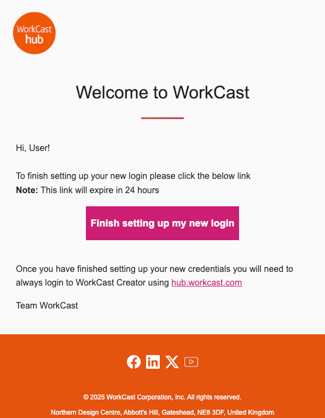
- The link will take you to page to finish setting up your new login and will either show single sign-on or username/password depending on your account licence.
SIngle sign-in
If you are a Business Pro or Enterprise customer you are able to setup SSO (single sign-on) with either your Microsoft or Google account.
- Click either the Microsoft or Google option to sign in
- you will be redirected to either a Google or Microsoft window that will ask you to sign-in with your account details.
- You may be asked to confirm permissions to allow this on your first login.
- You will also be asked any standard two-factor authentication you may have on that account.
- Once you have confirmed your account details your account setup is now complete.
- We recommend bookmarking hub.workcast.com for all your future logins to the WorkCast platform.
If you see a permissions error then we recommend trying again or referring to your service administrator for that account to confirm access.
Username/password
If you do not have single sign-on enabled on your account, the link from your email will direct you to a page to finishing setting up your login by choosing a new password for your WorkCast account.
Your password must be at least 8 characters long and contain at least 1:
-
Uppercase letter
-
Lowercase letter
-
Number
-
Special character such as ! @ # $ %
- Once your have chosen your new password you will redirected to a page to set up your two-factor authentication (2FA). You will need to use a third-party Authenticator app for your security code to login.
- Once you have confirmed your account details your account setup is now complete.
- We recommend bookmarking hub.workcast.com for all your future logins to the WorkCast platform.
Logging into WorkCast Hub
- Go to hub.workcast.com.
- Enter your username (email) and password OR sign in with your Microsoft or Google account (if you have set this up previously)
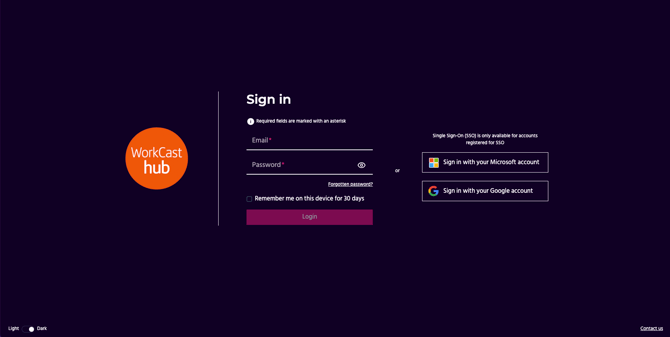
- If signing in with your Microsoft or Google account you will bre redirected to a Microsoft ir Google page to confirm your account.
- If you are signing in with your username and password, you will need to check your authenticator app that you would have setup previously for your authentication code.
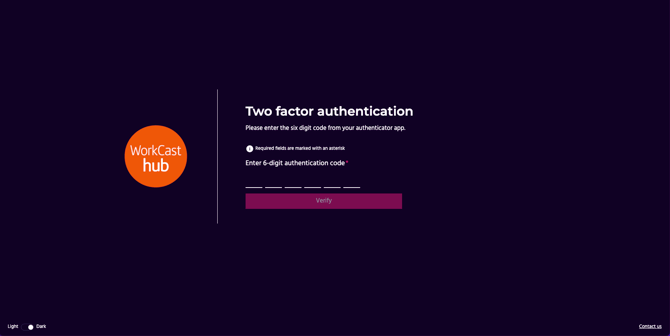
- Once confirmed, you will be then logged into your WorkCast account.
- If you have multiple accounts with us you will instead see a page to select which account your would like to login to.
Unable to login?
If you are unable to sign in with your Microsoft or Google account that you use with single sign-on please refer to your internal IT team or service administrator.
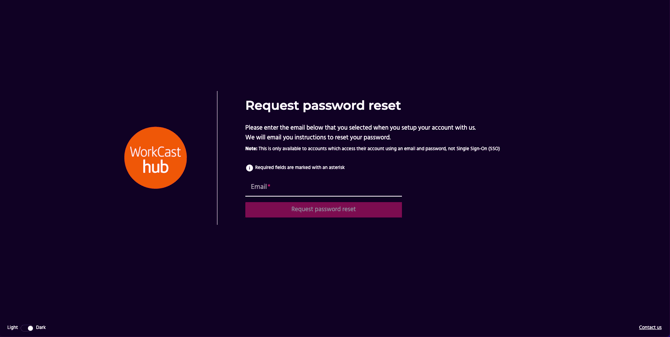
- If you see a message that your email or password is invalid, click Forgotten password on the sign in page.
- Enter your email address to request a password reset.
- If the account exists you'll receive an email with reset instructions.
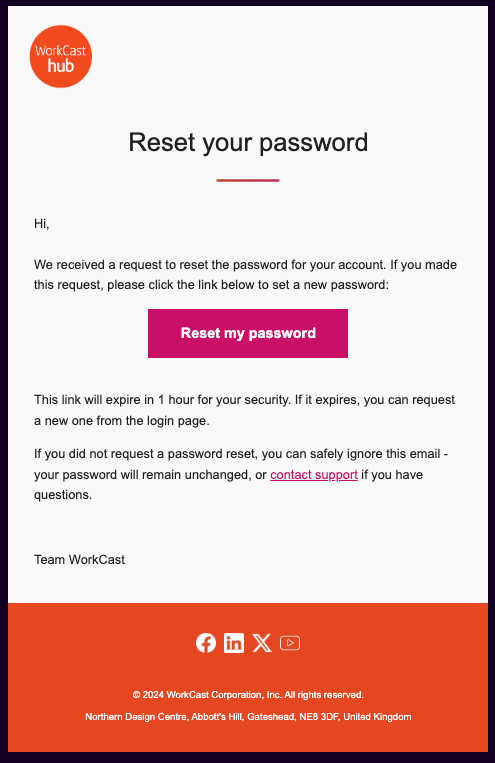
This link on the email will expire after 1 hour but a new one can be requested by clicking the following this process again.
- Click Reset my password on the email to choose a new password.
If you are still unable to sign in please note the error message that your receive and contact our team at support@workcast.com.